How to Turn Off AT&T Call Forwarding in 3 Easy Steps
Are your calls going to the wrong phone? The fastest way to remove call forwarding on AT&T is to use a simple code. Open your phone's keypad, type #21#, and press the call button. This trick stops all your calls from going to another number. Now, your own phone will ring again.
Why Turning Off Call Forwarding Is a Good Idea
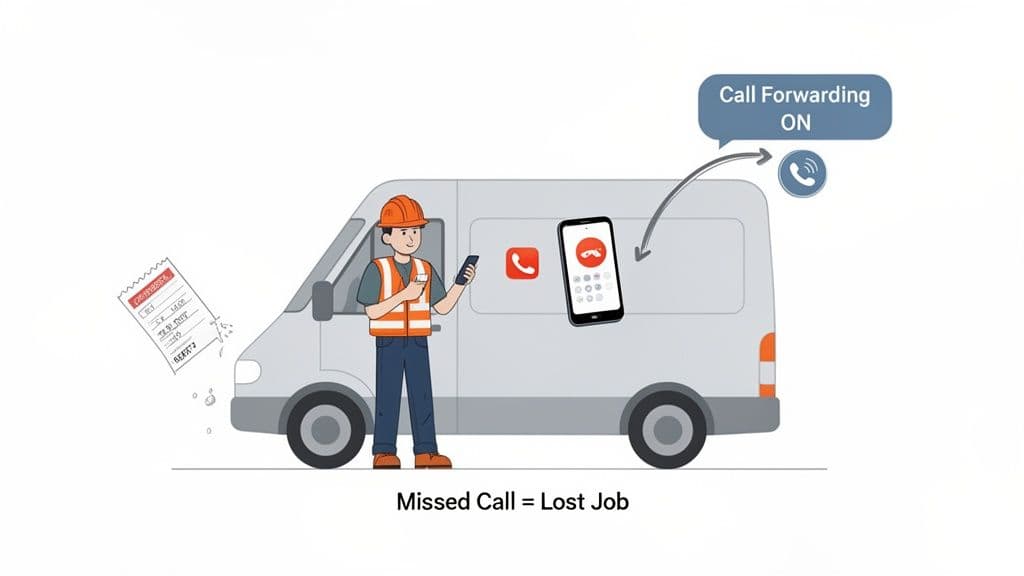
Did you ever miss a big call and not know why? A call forwarding setting you forgot about is often the reason. It's a great tool when you need it. But if you leave it on by mistake, it can cause problems, especially for a small business.
Imagine you are a contractor. Last week, you sent your calls to another phone because you were on a job site with bad service. Now it's a new week, and you forgot to turn it off. A new client calls with a big job, but your phone doesn't ring. The call goes somewhere else, or they get a busy signal. What do they do? They call the next contractor on their list.
For a small business, a missed call is a lost chance to make money. That one call could have been a new customer or an important job.
What a Forgotten Setting Can Cost You
The problem doesn't stop with one lost customer. When call forwarding is on by mistake, it can hurt your business without you knowing. Think of a plumber on a call with their phone in their truck. That one missed call could mean losing a $500 job.
Even worse, AT&T's call forwarding often skips your voicemail. This means people can't even leave a message. It’s like your business phone is gone. Knowing how to remove call forwarding AT&T puts you back in charge. It makes sure your phone, which is key to your business, is working for you.
For businesses that need a sure way to handle calls, a professional answering service company is a good choice. It is an easy way to make sure you never miss a call, even when you are busy.
How to Turn Off Call Forwarding on Your iPhone
If you have an iPhone with AT&T, turning off call forwarding is very easy. You can do it in less than a minute from your phone's settings. This is the best way for most people because you can see that it is off.
You don't need to be a tech expert. Apple makes these things simple. Let's go through the steps.
Using Your iPhone's Settings Menu
The main way to remove call forwarding AT&T on an iPhone is in the settings. It only takes a few taps.
Here is what you do:
- Open the Settings app on your iPhone.
- Scroll down and tap on Phone.
- In the Phone menu, tap on Call Forwarding.
You will see a screen with one switch. If call forwarding is on, the switch will be green. Just tap it once. It will turn gray, and the feature is now off. Your iPhone will save the change, and calls will come to your phone.
Pro Tip: After you turn it off, ask a friend to call you. It's the easiest way to make sure everything is working right.
A Faster Way with Dial Codes
Sometimes you just want the fastest way to fix it. For that, AT&T's network codes are great. These codes talk right to the network, not your phone's apps.
If you want to stop all types of forwarding, there is one main code.
Just open your Phone app, go to the keypad, and dial ##004#. Press the call button. A message will pop up to tell you the setting is gone. This one code clears everything. It's my favorite way to do a quick reset.
A Guide for Turning Off Call Forwarding on Android
There are many kinds of Android phones. This means a setting on a Samsung phone might be in a different place than on a Google phone. But don't worry. Once you know what to do, it's easy to remove call forwarding AT&T on any Android.
We'll show you how to find the right menu in your phone's settings. We will also share a code that works on all phones. It talks right to the AT&T network to get the job done fast.
Finding Android's Phone Settings
The best way to turn off forwarding is in your phone's menus. This way, you can see that the feature is off.
- First, open your Phone app. This is the one you use to make calls.
- Look for the three-dot menu, which is often in the top-right corner. Tap Settings.
- In settings, look for an option like Calls or Supplementary services. The name might be different on your phone.
- Last, choose Call forwarding and turn off any rules that are on, like “Always forward.”
When you do this, your phone tells the AT&T network about the change. Your calls should now come right to your phone again.
Pro Tip: Can't find the menu? Just open your main Settings app and use the search bar. Type "call forwarding," and it will take you there. It saves a lot of time.
The Fastest Method Using a Dial Code
If you don't like looking through menus, there’s a much faster way. You can use a simple code that works on any AT&T phone. This way is very good because it talks straight to the network.
All you have to do is open your phone's keypad and dial #21#.
Press the call button, and a message will pop up. That’s it! This one command stops any call forwarding you had set up. If you manage phones for a business, it is important to know how to redirect calls to mobile phones and control these settings well.
Managing Call Forwarding on an AT&T Landline
If your office uses an AT&T landline, turning off call forwarding is just as easy as on a cell phone. The fastest way is to use "star codes." These are simple codes you dial that talk right to the AT&T network.
To turn off all call forwarding, pick up the phone. When you hear the dial tone, press *73. You will hear a short tone. That means it worked. You can hang up, and your calls will now ring on that phone.
Turning Off Certain Forwarding Types
You might have forwarding set up for only certain times. For example, calls might be sent to another number only when your line is busy or you don't answer.
- Forwarding for missed calls: This sends a caller to another number if you don't answer.
- Forwarding for a busy line: This sends callers to another number so they don't get a busy signal.
The good news is that the *73 code is AT&T's main "off switch" for most call forwarding on landlines. It is usually the only code you need to know.
Don't want to remember codes? Your myAT&T account is a good choice. When you log in online, you can see all your phone features. You can manage them with a few clicks.
Using the myAT&T Portal
If you like to see what you are doing, the myAT&T website is the way to go. After you log in, find the section for your phone service.
You will see a clear choice for call forwarding. From there, you can see if it's on and turn it off with a click. This is a good way to be sure everything is set up the way you want.
What to Do When Call Forwarding Won't Turn Off
You've tried all the steps, but your calls are still going somewhere else. This can be annoying. When you try to remove call forwarding AT&T and it won't work, don't worry. A few simple tricks usually fix the problem.
The first thing to try is to restart your phone. It sounds too simple, but it often works. Turn your phone all the way off, wait about 30 seconds, and turn it back on. This makes it connect to the AT&T network again, which can fix small problems.
Looking a Little Deeper
If restarting doesn't work, your next step is to log into your myAT&T account online or in the app. Sometimes, a setting on AT&T's side can stop what you are trying to do on your phone. Your account gives you a full view of what's on, and you can turn it off right there.
Another reason could be a feature called Remote Call Forwarding (RCF). This is not the normal forwarding you turn on and off. It's a service on your account that you can't stop with a simple code.
If you have tried everything and calls are still being sent to another number, an account setting like RCF is likely the cause. You will need to call AT&T support to have them remove it for you.
This service is tricky because it is managed in a different way. In fact, AT&T papers show RCF can cost over $34 a month. You are also billed for the forwarded part of the call. Many new AT&T plans include normal call forwarding for free, but RCF is an extra that you pay for. To see the details on these fees, you can look at AT&T's public service guides.
For most people, a quick code or a tap in the settings is all it takes. But if you are stuck, checking your myAT&T account or calling customer service will almost always get your phone ringing again.
Got Questions? We've Got Answers
Are you stuck with AT&T call forwarding? You're not the only one. Here are fast answers to common questions.
How Do I Know if Call Forwarding Is On?
The fastest way is to look at your phone. Look for a small phone icon with an arrow at the top of your screen. That is the sign for call forwarding.
If you don't see an icon, you can dial a code to be sure.
- Open your phone's keypad.
- Dial *#21# and press the call button.
A message will pop up. It will tell you if forwarding is on and what number your calls are being sent to. It's a simple trick that works on most phones on the AT&T network.
Will My Voicemail Start Working Again After I Turn This Off?
Yes, it will. Call forwarding takes over for your voicemail. When it's on, calls you miss are sent to the other number. The caller does not get a chance to leave a message.
Once you turn off call forwarding, your phone will work like normal again. Missed calls will go right to your AT&T voicemail if you have it set up.
For a small business, it's very important that customers can leave a message. If this is you, you may want to learn how a good business phone message system can help you get every call.
Does AT&T Charge a Fee to Turn Off Call Forwarding?
No. AT&T does not charge you to turn call forwarding on or off. You can use the codes or your phone's settings as much as you want with no extra fees.
But remember, when call forwarding is on, you might be charged for the call time. This depends on your phone plan. This is another good reason to turn the feature off as soon as you are done with it.
Ready to Never Miss a Call?
7 days. Cancel anytime.
Let Cira answer your calls and book jobs while you work.