How to Forward a Voicemail Message on Any Phone

Have you ever gotten a voicemail with lots of details? And you need to send it to a team member fast? Good news! Most phones let you share the message as a sound file with just a few taps.
You can text it, email it, or send it with an app like Slack. It's very simple and helpful.
Why Forward a Voicemail?
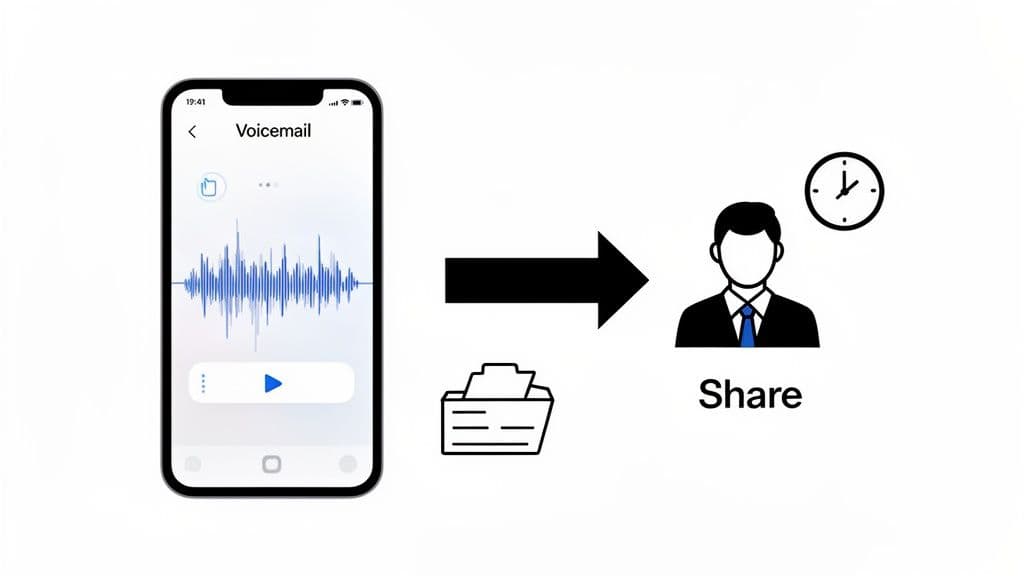
Knowing how to forward a voicemail is more than just a cool phone trick. If you run a business, it helps you act fast and keep the right people in the loop. It solves simple problems and makes sure important details don't get lost.
Think about this. A customer leaves a long message with rules for a project. Instead of writing notes and hoping you got it right, you can send the sound file to the person on the job. They get the info right from the customer, hearing their tone of voice and all.
Keep Your Team on the Same Page
Forwarding a voicemail is a simple way to stop messages from getting mixed up when passed along. When your team hears the first message, there is no confusion.
Let's say a new lead calls with a hard question you can't answer, but your partner can. Forwarding the message lets your partner hear the lead's exact words. This gives them all the info they need to call back and help.
Real-World Examples
Here are a few times when forwarding a voicemail can be a big help:
- Urgent News from Suppliers: Your main supplier leaves a message about a late shipment. You can send it right away to your project manager so they can change the team's plan.
- Saving Client OKs: A customer calls to say yes to a big price quote. Forwarding that message to your project folder saves a sound record of their approval.
- Giving Out Tasks: You get a voicemail about a new service request. Just send it to the right person without having to repeat all the details yourself.
Voicemail forwarding is one of the easiest ways to give tasks to others. It makes sure everyone is clear and helps your team answer quickly.
How to Forward a Voicemail Message on iPhone
If you use an iPhone, you'll be happy to know that sharing a voicemail is super easy. Apple's Visual Voicemail shows all your messages in a list. You don't have to call in and listen one by one. This makes it easy to find the message you need and send it.
Let's say a client leaves a voicemail with a last-minute change for tomorrow's job. Instead of trying to repeat the message and maybe get it wrong, you can just forward the real audio to your lead tech. In a few seconds, everyone knows what to do, and there's no confusion.
Finding and Sharing Your Voicemail
First, open the Phone app on your iPhone. In the bottom-right corner, you'll see the Voicemail icon. Tap it. You will see a list of all your messages.
Now, look through the list and tap the voicemail you want to share. You will see a few choices, like the play bar. Look for the share icon. It's a small box with an arrow pointing up.
Tapping this share button is the key. It shows all the ways you can send the sound file. It is a great tool for getting information where it needs to go, fast.
Once you hit that share button, a menu will pop up with choices. You can send the voicemail's sound file using:
- Messages: This is great for quickly sending a message to a coworker’s phone.
- Mail: A good choice when you need a written record or want to send it to the office.
- AirDrop: Instantly send the file to another Apple device right next to you.
- Other Apps: You can also share it right to apps like WhatsApp or Slack if your team uses them.
A Pro Tip for Business Owners
Sometimes, you don't want to forward a message but save it for yourself. This is very useful for things like client approvals you hear over the phone or detailed instructions you will need to hear again.
From that same share menu, instead of picking a person or an app, look for choices like "Save to Files" or "Add to Voice Memos."
Saving it to your Files app is a big help. It lets you put important client messages in folders on your phone or in iCloud Drive. This makes a safe copy of important messages you can get from any of your devices. It can be a lifesaver.
Forwarding Voicemails on an Android Phone
The Android world is a bit different from Apple's. Companies like Samsung, Google, and Motorola all make Android phones. So, your voicemail app might not look just like your friend's. But don't worry. The way to share a message is pretty much the same on any device.
You’ll start by opening your phone's voicemail app. Look for an icon that looks like a small tape. Once you’re in, find the message you need to forward. Then look for a share or export button. Tapping this will let you send the voicemail as a sound file. You can send it in a text message, an email, or even save it to a cloud service like Google Drive.
It just takes three simple steps: pick, share, and send.
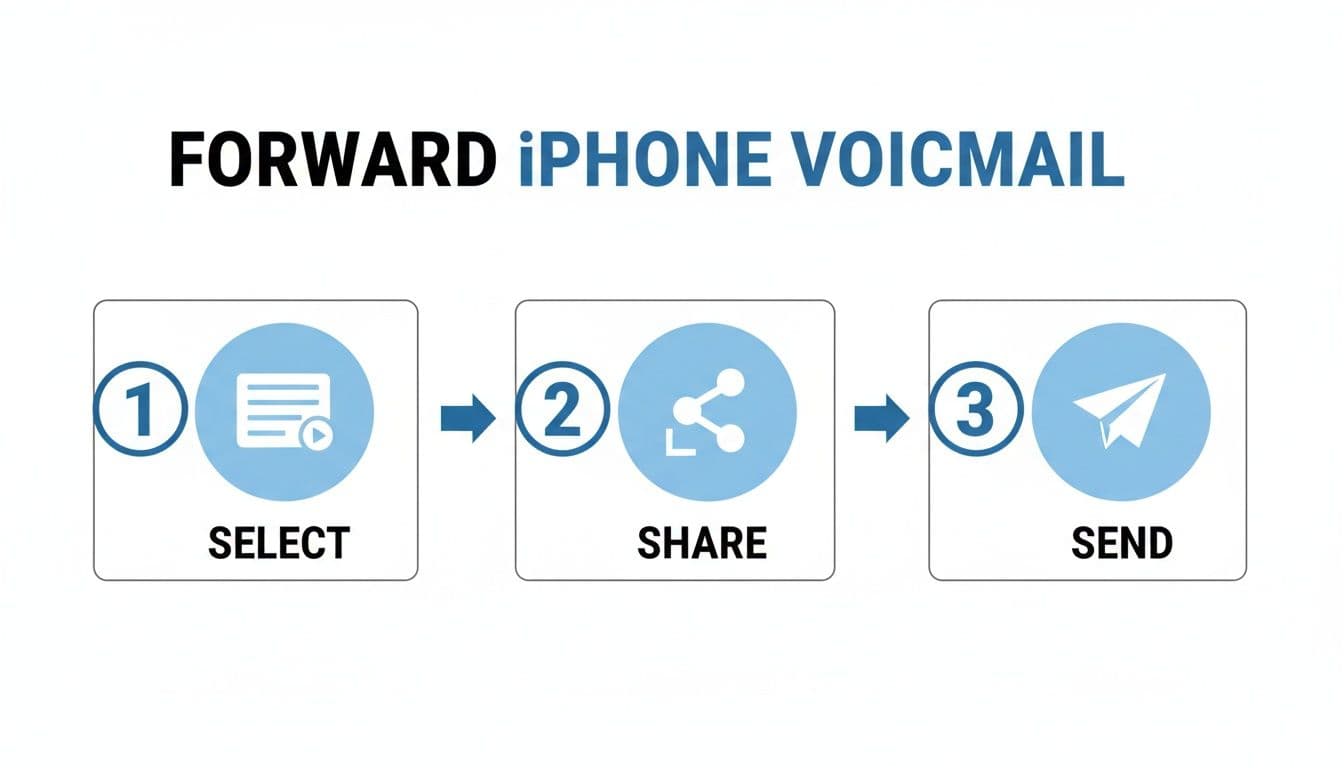
Once you find that share button, you’ll see how easy it is. The main steps are the same on almost any modern Android phone.
Dealing with Different Carrier Apps
Here’s something that can be tricky: your cell phone company. Big names like Verizon, T-Mobile, and AT&T often have their own Visual Voicemail apps. If you look in your phone's built-in app and can't find a share button, the company's app is the next place to look.
A quick search on the Google Play Store for your phone company's voicemail app usually fixes the problem. These special apps are made with features like sharing.
Here's a key thing to remember: When you forward a voicemail, you're just sending a normal sound file. The person who gets it can listen to it on any device—another Android, an iPhone, or their computer. No special software is needed.
Finding your way around the different company apps can be a little confusing. Here is a quick guide for the big ones.
Voicemail Forwarding on Top Android Carriers
The exact icon or menu name might be a little different, but the steps are almost the same. Here’s how it usually works.
| Carrier | Voicemail App | How to Forward |
|---|---|---|
| Verizon | Verizon Visual Voicemail | Pick the message, tap the three-dot menu, and choose "Send" or "Share." |
| T-Mobile | T-Mobile Visual Voicemail | Tap and hold the message, then pick the "Share" option from the menu. |
| AT&T | AT&T Visual Voicemail | Pick the voicemail, tap the share icon, and choose how to send it (email, text, etc.). |
As you can see, it usually just takes an extra tap or a long press to find the share choices. Once you do it once, it'll be easy.
Using Google Voice and Email for Voicemails
For many small businesses, Google Voice is a huge help. It’s a simple, strong way to handle calls without a fancy phone system. It connects your phone right to your email. This turns voicemails from a pain into something you can manage. It's much better than the old way of calling in and writing notes.
One of the best things it does is write out your voicemails and send them to your email. Once you turn that setting on, Google sends a text version of every message to your Gmail. This means you can just read a message to see if it's important. You don't have to stop what you're doing to listen to the whole thing. It’s a big time-saver.
From your email, you can forward that voicemail email just like any other message. Now you have a record of that call you can search for and save. Need to add a team member or attach it to a client's file? It’s as easy as hitting "forward." This is very helpful when you need to officially forward a voicemail to an email for your records.
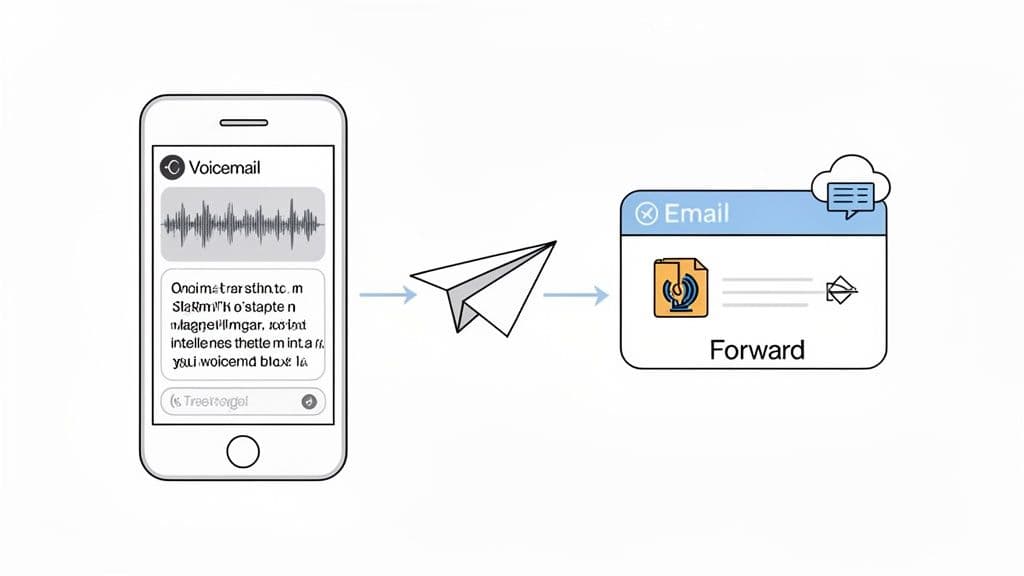
Sharing Audio Directly from the App
Of course, sometimes the text just doesn’t show the tone of voice. How someone says something can be important, right? If your team needs to hear the real sound, Google Voice makes that simple, too. You can share the sound file right from the app. This is great when you're not at your desk.
It’s pretty simple:
- Open the Google Voice app and tap on the voicemail tab.
- Find the message you need to send and pick it.
- Look for the share icon. It usually looks like a small box with an arrow pointing out of it.
- From there, just pick how you want to send it, like through a text message or an email.
This freedom makes it easy to handle important messages, whether you’re in the office or out with a client. If you work with a lot of sound files, you might also want to transcribe voice memos to text to stay organized.
Being able to turn voicemails into text and email is a big deal. It’s one reason the voicemail market, worth about $2.5 billion in 2025, is expected to grow by 12% each year.
For businesses like home service companies, where you're always moving, these features are a must-have to stay organized. Using these free Google tools is one of the easiest ways to build a better way to talk with customers for your business.
A Better Way to Handle Missed Calls

Knowing how to forward a voicemail is useful. But what if you could avoid voicemail completely? For any busy business, voicemail can be a place where details get missed, answers are late, and our take on missed chances shows the cost. It's a game of phone tag you can't win.
Imagine this instead: a system that answers every single call, 24/7. Your customers would never hear a voicemail machine again. That's what a modern AI receptionist does.
Beyond Voicemail: An AI Solution
Think of it as your helper on the front line. Our live virtual receptionist can answer common questions, check if new leads are a good fit, and even book meetings on your calendar. Instead of a messy sound file, you get a clean call summary. It has the full text and a link to the recording.
This makes sharing key info with your team very easy. You can quickly forward the details of a new client or a hot lead to the right person. This gets rid of the risk of getting the message wrong.
An AI receptionist stops you from losing leads to voicemail. It grabs every chance and gives every caller our picks for call handling, day or night.
This kind of tech is not for the future; it's here now. The growth of VoIP, now used by over 3 billion people, has made these tools possible. With 70% of businesses already using VoIP, adding an AI system is the next smart step.
A good virtual answering service for small business does more than just take messages. It helps you manage your work, book more jobs, and get back the time you used to waste on voicemails. And if you want to improve your whole phone setup, looking at choices for cost-effective international calling can complete your system.
Answering Your Top Questions About Voicemail Forwarding
So, you know the basics for forwarding a voicemail, but you might still have a few questions. Let's look at some common problems so you can share those messages with no trouble.
Can I Forward a Voicemail to a Different Type of Phone?
Yes, you can. Don't worry if you're sending from an iPhone to an Android or the other way around.
When you forward a voicemail, you're just sending a normal sound file. The person who gets it can open and play it on any smartphone, tablet, or computer. It's just like any other sound file they'd get in a text or email. It will work on any device.
Is There a Limit on How Many Voicemails I Can Forward?
No, not really. Most phone companies and phones don't set a limit on the number of voicemails you can forward.
The only thing that might stop you is your phone's storage space. Every voicemail is a small sound file. They can add up and use space on your phone.
Pro Tip for Business: If you're saving important client voicemails, try saving them to a cloud service like Google Drive or Dropbox. This frees up your phone's memory. It also makes a safe, organized backup of important messages.
What if My Phone Doesn't Have a Share Option for Voicemails?
This is a common problem, especially on older phones or with certain phone companies. If you're having other call problems, you might want to learn how to remove call forwarding on AT&T or your phone company to see if that helps.
If you can't find a share button, first try downloading your phone company's own visual voicemail app from the app store. They almost always have a share button. If that doesn't work, here's a simple, old-school trick:
- Play the voicemail out loud on speakerphone.
- Use a second device (another phone or a tablet) to record the sound with its voice memo app.
- From that second device, you can now easily share the new recording.
It’s a simple but good way to save and send the message when the direct option isn't there.
Ready to Never Miss a Call?
7 days. Cancel anytime.
Let Cira answer your calls and book jobs while you work.